The siv manual on one page
Every chapter of the manual on one page, to read from start to end, search with Ctrl-F or print.
All of this is also available in siv itself, without a network connection: run siv help. Download siv and read more on the siv home page.
1. Getting started
From downloading siv to your own article in the browser, in five minutes. You need a terminal and a text editor.
Download siv # ↑
siv is one file. Download siv for Linux, let everyone (ugo: user, group and others) run it, and try it:
$
$
siv – Sivutin static site generator. Help: siv help
Next: Create a website:
siv init my-website
Every siv command ends with a hint like this "Next:". When you don't know what to do, run siv alone.
To use it as siv in any folder, copy it to a folder on your PATH:
$
Create a website # ↑
$
Created my-website/ from the 'minimal' starter.
Go into your project:
cd my-website
$
The new website already works: it has a look, a front page and a few sample pages to read and delete.
Write an article # ↑
$
Created content/my-first-page/index.md
Next: Write something on your page:
micro content/my-first-page/index.md
Open the file in any text editor. The lines between the +++ lines are the front matter: the title and the date. Your text goes below them:
1. 2.3.
The text is Markdown: a blank line starts a new paragraph, ## makes a heading, and lines starting with a number make a list. The next chapter shows the rest.
See it in the browser # ↑
$
siv 0.1.31 preview 2026-10-15 w42 Thu 04:13
04:13:56 Built in 0.31s: 15 written, 0 removed
Preview: http://localhost:8888/my-first-page/
You saved this page in the last hour. Front page: http://localhost:8888/
Stop with Ctrl-C. Sandbox: landlock (files and network)
Open the address in a browser. siv opens straight at the page you saved last:
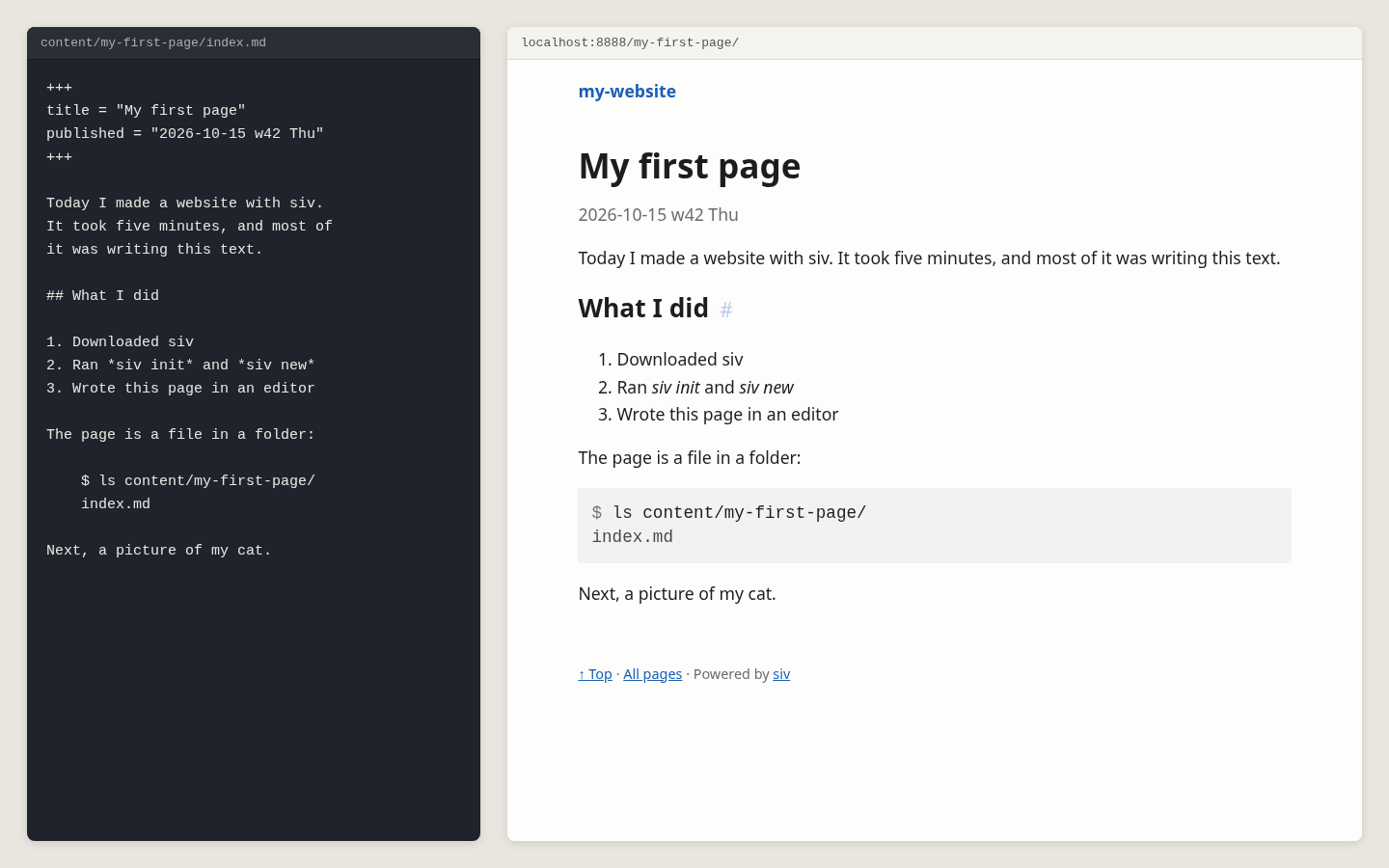
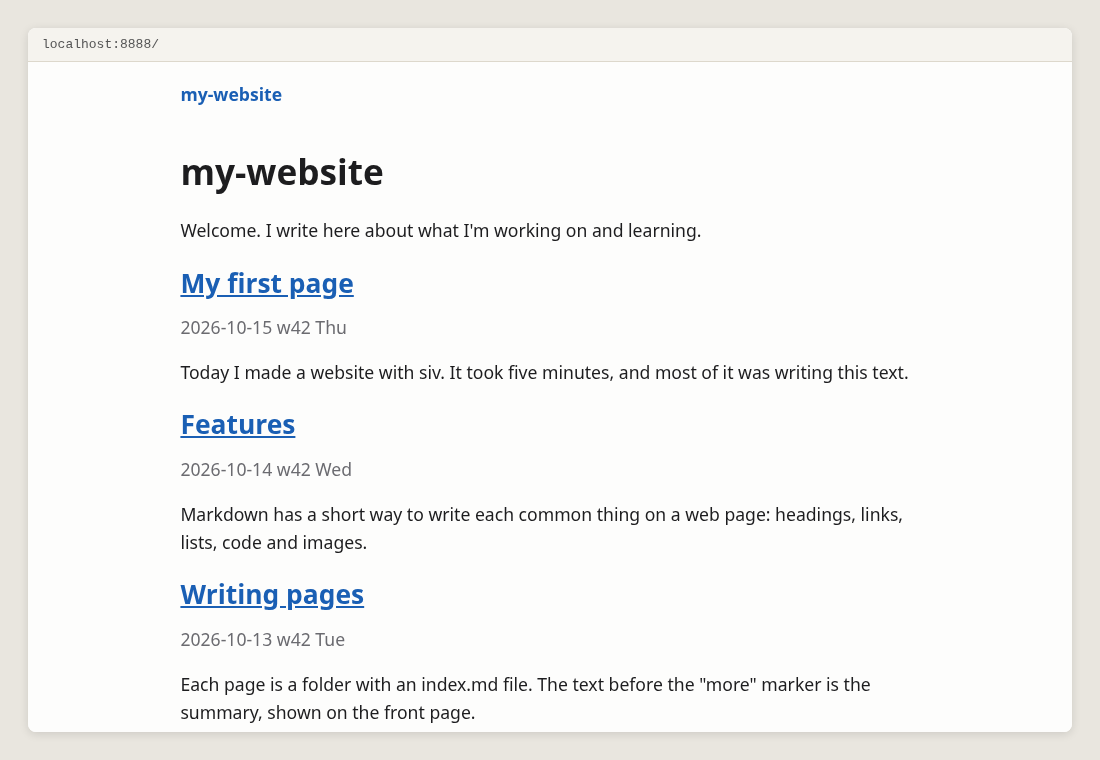
Keep the preview running while you write. Every time you save the file, the browser reloads the page. The front page lists your article, newest first, with its first paragraph as the summary:
Stop the preview with Ctrl-C.
Make the website # ↑
$
siv 0.1.31 build 2026-10-15 w42 Thu 04:16
Converting images: 7 new files...
Built in 2.22s (templates 0.00s, images 2.17s, other 0.05s)
Pages 6
Images 1 → 7 files, 7 encoded, 0 cached
Output 15 written, 0 unchanged, 0 removed
Links 38 internal OK
Checks OK
Sandbox landlock (files and network)
Skipped feed.xml: the feed needs the site's address. Set it: siv config base-url https://example.com/
Next: Tip: put an image in your page's folder and add it with 
The website is now in the public/ folder: plain HTML files, images and nothing else. Open public/index.html in a browser, or copy the folder to any web server, see Publishing.
Every build checks the links between your pages. A broken link stops the build, so visitors never see it.
What's where # ↑
siv.toml      settings: siv config
content/      your pages and their images
templates/    the HTML and CSS around every page
skel/         the starting text of new pages
public/       the finished website, made by siv build
Makefile      make builds, make publish publishes
Each page is a folder with an index.md. The folder's name is the page's address: content/my-first-page/ is shown at /my-first-page/. Images go into the same folder as the page.
When you're lost # ↑
sivalone tells you what to do next.siv helplists every help topic. This manual is made from them.siv help siv2201explains one error code.
Next: Writing with Markdown
2. Writing with Markdown
Pages are plain text in Markdown: a few marks, like * and #, that read well as text and turn into a web page. Each example below shows the Markdown, then what siv makes of it.
siv reads CommonMark, plus tables, footnotes, strikethrough, task lists, heading anchors and definition lists.
Paragraphs # ↑
A blank line starts a new paragraph. Lines next to each other join into one paragraph, so you can break lines wherever you like.
Write as you would write an email. This line joins the one above.

A blank line starts a new paragraph.
To break a line inside a paragraph, end it with a backslash:
Roses are red,
violets are blue.
Bold, italic and code # ↑
Italic, bold, strikethrough and code.
Headings # ↑
A line starting with # is a heading. The page title is the biggest heading, so on a page start from ##:
The headings of this manual are made like this. Each heading gets an anchor, made of its text: "Bold, italic and code" gets #bold-italic-and-code. An anchor is the part of an address after #, so a link can open the page at that heading. Move the mouse over a heading to see its # link, and copy the address from it.
When a page has two or more headings, the starter shows a table of contents at the top, like the one on this page.
To choose the anchor yourself:
Links # ↑
Read the siv home page. Back to the contents. Up to Paragraphs on this page.
Link to your own pages with a path from this page: ../other-page/. Or from the site's root: /other-page/. siv checks every link to your own pages when it builds, and a broken one stops the build.
Bare addresses become links by themselves:
See https://example.com/ or www.example.com, or write to tero@example.com.
Lists # ↑
- - --
1. 2.- Lists start with a dash
- Each item on its own line
- Indent four spaces for an inner list
- Back to the outer list
- Numbered lists
- Work the same way
A task list has a box in each item:
- -A definition list explains words:
Static website : A website made of plain files, without code running on the server.
Code # ↑
Indent with a tab # ↑
The quickest way to show code is to indent it with a tab, or four spaces. siv guesses the language and colors it. Lines starting with $ are commands; the rest is their output:
List the files:
$
. .. content siv.toml templates
The same works for code in many languages:
siv guesses from clear signs only: a first line starting with $ , a #! line, and the typical marks of C, HTML, CSS, Python, shell and JavaScript. When it's not sure, the code stays plain text, without colors:
	Tugboat   1970
	Ferry     1956
Name the language # ↑
For a longer example, or to name the language yourself, put the code between lines of three backticks, with the language after the first ones:
int
Known names: python, bash, sh, c, go, rust, java, js, html, css and many more. text turns the colors off. linuxcli (or console) colors $ lines as commands and the rest as output, even when the first line isn't a command:
Install the web server:
$
Reading package lists... Done
When you copy commands from the page, the $ isn't copied along.
Code in a sentence # ↑
Backticks inside a line make code in a sentence: `siv build` shows as siv build.
Turn guessing off # ↑
Guessing is on by default. To turn it off for the whole site:
$
Or for one page, in its front matter: autodetect-code-lang = false.
Quotes # ↑
A quote starts with a greater-than sign. Quotes stay "as you typed them".
siv leaves quotation marks as you typed them: curly quotes differ between languages.
Tables # ↑
| Boat | Year |
|---|---|
| Tugboat | 1970 |
| Ferry | 1956 |
The colon in -----: aligns a column to the right. The columns don't need to line up in the text.
A table copied from a spreadsheet is tab-separated. Put it in a ```tsv block as it is:
| Boat | Engine | Power |
|---|---|---|
| Tugboat | 1.2 | 62 |
| Canoe | 0.9 | 27 |
Columns of numbers are aligned to the right by themselves. A tsv block can also become a chart: Charts.
Footnotes # ↑
static binary, without dependencies.
siv is one file.1
A static binary, without dependencies.
The footnotes are collected at the end of the page, with links back.
Images # ↑
An image alone on its line becomes a figure, with its description as the caption:
Put the image in the page's folder. siv makes every size a screen needs. More in Images.
The summary # ↑
The front page and other lists show each page's first paragraph as its summary. To choose a longer summary, put a <!--more--> line after it:
Notes to yourself # ↑
HTML comments are not published:
Visible text.
Other HTML is published as it is, for the rare thing Markdown can't do: HTML.
Next: Images
3. Images
Put a photo in the page's folder and add it with one line. siv makes every size a screen needs, removes the camera's location data and adds a caption.
An image with a caption # ↑
Copy the image into the page's folder, next to index.md:
content/my-first-page/index.md
content/my-first-page/lake.jpg
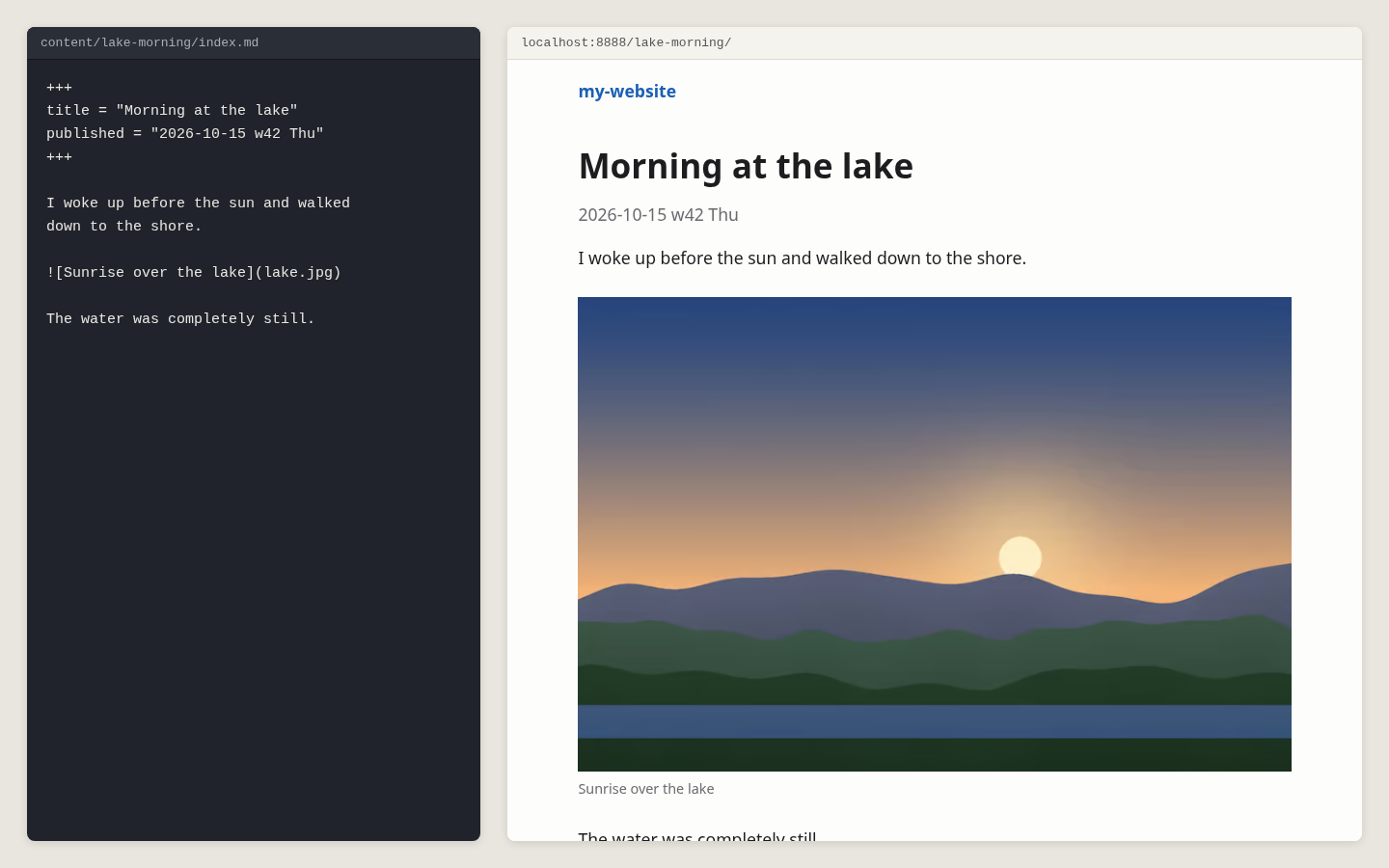
An image alone on its line becomes a figure. Its description is shown as the caption, and screen readers read it aloud:

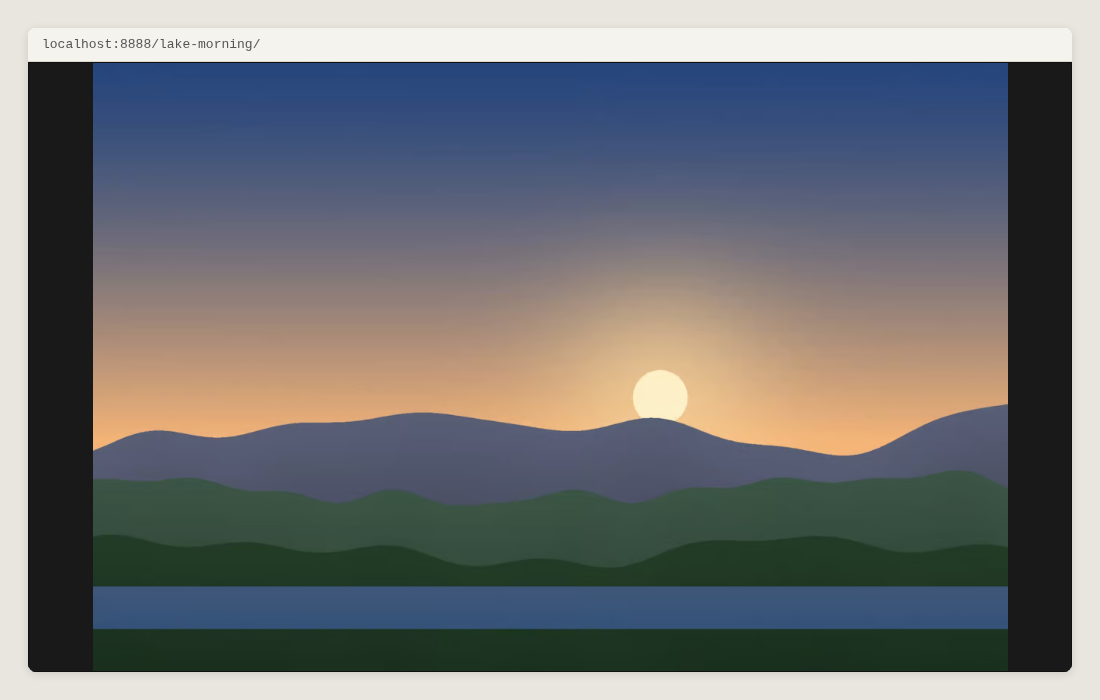
Click the image to see it bigger. Press Esc, or click again, to close it:
Without a description, , the image is decorative: no caption, and it doesn't open bigger. Describe every image that matters to the text. A missing description gets a warning.
Images beside the text # ↑
Add a layout after the image, in braces. {.right} floats it to the right, half the text column wide, and the text flows around it:
The text after the image flows on its left, and continues below it when the image ends. Keep writing, and the text fills the space beside the image, line by line, as long as there is room for it.
{.left} works the same way on the left. On a phone, both are as wide as the text.
Wide and full-width images # ↑
{.wide} makes an image wider than the text. {.full} makes it as wide as the browser window:
Set the widths with siv config text-width 42 and siv config wide-width 64, in em: one em is the width of the letter m.
Small images: logos and icons # ↑
max= shows an image at most this many pixels wide, or fits it into a box:

The sun above is at most 60 pixels wide.
{.right max=100x100} fits an image in a 100 × 100 box on the right. Phones still get a sharp version.
An image in a sentence # ↑
An image inside a line of text stays there, as big as it is:
A tiny sun in a sentence.
An image that is a link # ↑
Put the image inside a link. It opens the address instead of the bigger image:
What siv does to each image # ↑
When it builds, siv turns lake.jpg into several sizes, in two formats: AVIF for current browsers and JPEG for the rest (PNG for PNG images). The browser picks the smallest file that looks sharp on its screen, so a phone doesn't load an image made for a big screen.
siv also
- turns the image upright, following the camera
- converts the colors to the ones browsers show
- removes the metadata, including GPS location
- never makes an image bigger than the original
The original file isn't published. The converted images are kept in .siv/cache/img/, so only new or changed images are converted. The first build of a site with many photos takes a while:
$
Converting images: 7 new files...
Built in 2.22s (templates 0.00s, images 2.17s, other 0.05s)
Images 1 → 7 files, 7 encoded, 0 cached
SVG and GIF images, and images from other sites, are used as they are.
Choosing the quality # ↑
The default quality suits photos. To compare qualities by eye, with the file sizes:
$
It makes a page of the same image at several qualities. Choose the smallest file that looks right, and set it:
$
$
Other settings # ↑
After the image, in braces:
.right .left .wide .full   layout
#lake                      an anchor, to link to the image
focus=30%,60%              the point to keep when the image is cropped
max=200                    at most 200 pixels wide
max=200x150                fits in a 200 × 150 box
In siv.toml (siv config):
image-widths = [480, 800, 1200, 1600, 2400]   sizes of AVIF images
fallback-widths = [800, 1600]                 sizes of JPEG or PNG images
avif-quality = 72
jpeg-quality = 82
The details, like how a browser picks the size: siv help images.
Next: Charts and diagrams
4. Charts and diagrams
Write the numbers as text, and siv draws the chart when it builds the site. Charts are images inside the page: they need no JavaScript, they print, and they follow the visitor's dark mode.
A bar chart # ↑
Write the data in a block named bar. Separate the columns with one tab: the first row names the series, the first column labels the points.
A table copied from a spreadsheet is already tab-separated: paste it as it is. Under each chart, "Data" opens the numbers as a table, for screen readers and for anyone who wants the exact values.
A line chart # ↑
line draws one line for each series. An empty cell is a missing value, a gap in the line:
Data
| Month | 2024 | 2025 |
|---|---|---|
| May | 8,5 | 9,1 |
| Jun | 14,2 | 15,0 |
| Jul | 19,8 | |
| Aug | 18,1 | 20,3 |
Numbers can have a decimal comma, 8,5, and spaces between thousands, 12 000.
A stacked bar chart # ↑
stack puts the series on top of each other, to show the total:
Data
| Season | Day trips | Overnight |
|---|---|---|
| Spring | 120 | 40 |
| Summer | 480 | 210 |
| Autumn | 160 | 50 |
Options # ↑
After the name of the chart:
title="Text"    the caption, also read by screen readers
unit=%          added to the numbers on the axis: 50%
unit=" °C"      quotes keep the space: 20 °C
The series get the colors of a palette that works for color-blind visitors and on dark backgrounds. To change a color, add to templates/layout.css:
}
A mistake in the data, like a word where a number should be, stops the build. The error tells the line to fix.
Sequence diagrams # ↑
A sequence block shows messages going back and forth, top to bottom:
Steps
- Browser → Server: GET /charts/
- Server → Server: find the file
- Server → Browser: 200 OK
-> is a message and --> a reply, drawn dashed. The participants are drawn in the order they first appear. Lines starting with # are comments. "Steps" opens the messages as a numbered list.
A table instead # ↑
A tsv block becomes a table instead of a chart: Tables.
5. Pages, folders and addresses
A siv website is a folder of folders. Each page is a folder with an index.md file, and the folders become the addresses of the pages.
A page is a folder # ↑
Everything in content/ is published at the same path:
content/index.md                  /                the front page
content/hello/index.md            /hello/
content/hello/cat.jpg             /hello/cat.jpg
content/boats/tugboat/index.md    /boats/tugboat/
Keep each page's images and other files in its folder, and use them by name: . When you move the folder, everything moves along.
A folder without index.md is not a page, but its files are still published. Folders inside it that have an index.md are pages again.
Create a page # ↑
$
Created content/trams-in-helsinki/index.md
The title goes into the page as you wrote it. The folder name is made of it with the address rule below. A page can go inside another folder:
$
Created content/boats/tugboat/index.md
A short name like boats/tugboat gets the title "Tugboat". Use quotes around a title with characters the shell treats specially, like ', ? or !: siv new "Tero's trip: what is DNS?".
New pages start from skel/default.md, a skeleton you can edit:
+++
title = "{{ title }}"
published = "{{ now }}"
+++

Write the first paragraph here. It's the summary shown on the front page.

Write the rest of the page here.
The front matter # ↑
The lines between +++ at the top of a page are its front matter, in TOML: a name, = and a value.
+++
title = "Boat repairs"
published = "2026-10-12 w42 Mon"
tags = ["boats", "repair"]
+++

The text of the page starts here.
The most used keys:
title          the page title
published      the date, optionally with a time
updated        the date of the last real update
tags           a list of tags: siv help tags
draft = true   shown in preview only, never published
listed = false published, but left out of lists
aliases        old addresses that lead here, see below
cover          an image for lists of pages
Every key: siv help front-matter. A misspelled key gets a warning that suggests the right one.
Dates # ↑
published = "2026-10-12 w42 Mon"
published = "2026-10-12 w42 Mon 14:30"
published = 2026-10-12
The first form, from calendar.txt, has the week number and weekday, so you see them while you write. If they don't match the date, siv tells the right ones:
content/foo/index.md:3:25: error[siv2201 date]: 2026-12-01 is w49 Tue, not w01 Mon
Lists show dated pages first, newest first, then pages without a date.
Drafts # ↑
A page with draft = true is shown by siv preview, but never built into the website. Remove the line to publish it. A link from a published page to a draft gets a warning, as the link would go nowhere.
Addresses # ↑
The address of a page comes from its folder name. Folder names, new pages and heading anchors follow one rule:
- only a-z, 0-9 and
- - lowercase
- ä, ö and å become a, o and a; other accents are removed
- every other character becomes
-
"Catalyzing change in Öljytön enterprises" becomes catalyzing-change-in-oljyton-enterprises.
Links between pages # ↑
Write a link to your own page as a path, from this page or from the root:
siv checks every link to your pages, and every anchor, on every build. A broken link stops the build, with the file and line to fix.
In the finished website, siv writes the links in the style set in siv.toml. The default, links = "relative", works on any server, in any folder.
Moving a page # ↑
Addresses are forever: other sites and bookmarks link to them. When you move or rename a page, keep the old address working with an alias:
+++
title = "Tugboat"
aliases = ["/old-address/"]
+++
The old address becomes a small page that sends the visitor to the new one.
The 404 page # ↑
A page at content/404/index.md is the "page not found" page. Tell your web server to show /404/ for missing pages: Publishing.
Site-wide files # ↑
There is no separate folder for static files. Files next to the front page are published at the root of the site:
content/favicon.ico     /favicon.ico
content/robots.txt      /robots.txt
content/fonts/a.woff2   /fonts/a.woff2
Files and folders whose name starts with a dot, like .git, are not published, with a warning. .well-known/ is the exception, as certificates need it.
A text file starting with +++ is a template that siv fills in, like the Atom feed content/feed.xml. Other files are copied as they are.
Dated copies of a page # ↑
A course page changes every year, but last year's version should stay readable. siv util archive makes a dated copy, an edition, at an address of its own:
$
Created the 2026 edition in content/2026/karaoke-101-2026/:
content/2026/karaoke-101-2026/index.md
Details: siv help editions.
Reusable text # ↑
A snippet is text you use on many pages, kept in skel/snippets/:
$
Inserted skel/snippets/old-version.md at the top of content/karaoke-101/index.md
The text becomes part of the page, as plain Markdown. Details: siv help snippets.
Next: Lists, tags and the feed
6. Lists, tags and the feed
siv lists your pages for you: on the front page, on the list of all pages, on tag pages and in the feed. When you add a page, every list gets it.
The front page # ↑
The starter's front page lists the pages, newest first, each with its title, date and summary. The summary is the first paragraph, or the text above a <!--more--> line.
The front page is content/index.md. The text in it is shown above the list:
+++
title = "My website"
template = "list.html"
+++

Welcome. I write here about what I'm working on and learning.
template = "list.html" makes the page a list. Any folder's page can be one: content/blog/index.md with template = "list.html" lists the pages in content/blog/.
To leave a page out of the lists, but still publish it:
listed = false
All pages # ↑
/all/ lists every page of the site, by date. The starter links to it from the footer of every page.
Tags # ↑
Give a page tags in its front matter:
tags = ["boats", "repair"]
Tag pages are made by one page with for-each. The kitchen-sink starter has one: siv init my-test --starter kitchen-sink.
+++
title = "Tags"
template = "tags.html"
for-each = "tags"
listed = false
+++
This page in content/tags/index.md makes /tags/, listing every tag, and a page for each tag, like /tags/boats/, listing its pages.
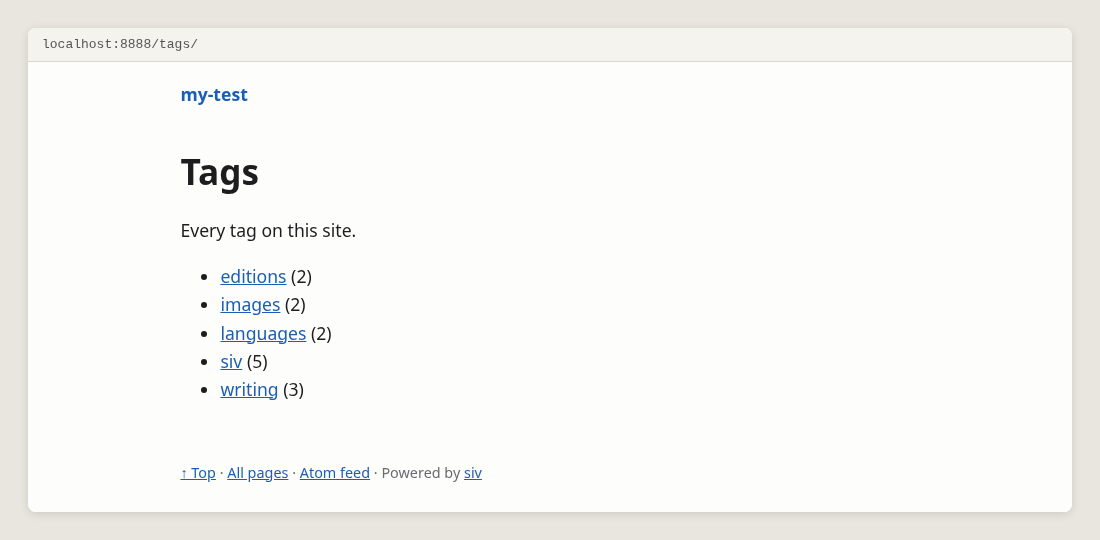
The template tags.html decides what they show. Pages with many tags in common can be listed with page.related(), and long lists split over several pages with paginate(): siv help tags.
The feed # ↑
Feed readers check a site's feed to see new pages. siv makes an Atom feed at /feed.xml, with the 20 newest pages. The feed needs the address of your site, as feeds use full addresses:
$
$
Without the address, the build skips the feed and tells you so. The time zone makes the times right in feed readers.
Drafts, unlisted pages and pages without a date are left out of the feed. To leave out one page, add in-feed = false.
The feed is made by the template content/feed.xml. To send only the summaries, change p.content to p.summary in it. Details: siv help feed.
With the address set, siv also writes /sitemap.xml for search engines.
Pages in other languages # ↑
Set the site's language, and a page's own language in its front matter:
$
+++
title = "Sauna"
lang = "fi"
+++
Browsers, screen readers and translators use it: a screen reader reads a Finnish page with a Finnish voice.
A page in two languages has a file for each, in the same folder:
content/sauna/index.md        /sauna/       the main version
content/sauna/index.fi.md     /sauna/fi/    in Finnish
siv can also detect the language of each page from its text: siv help languages.
Next: Changing the look
7. Changing the look
A new site already has a look. Change it when you want to, from a color to the whole page. Keep siv preview running: the browser reloads every time you save.
Where the look is # ↑
templates/style.css    colors, fonts, spacing: your own CSS
templates/layout.css   images, charts and the image viewer
templates/code.css     the colors of code
templates/base.html    the HTML around every page
siv.toml               the width of the text and other settings
style.css is short and yours to change. The other CSS files you seldom need to touch. siv puts the CSS inside every page, so a page shows at once, without waiting for another file. The code colors are only added to pages that have code.
Colors and fonts # ↑
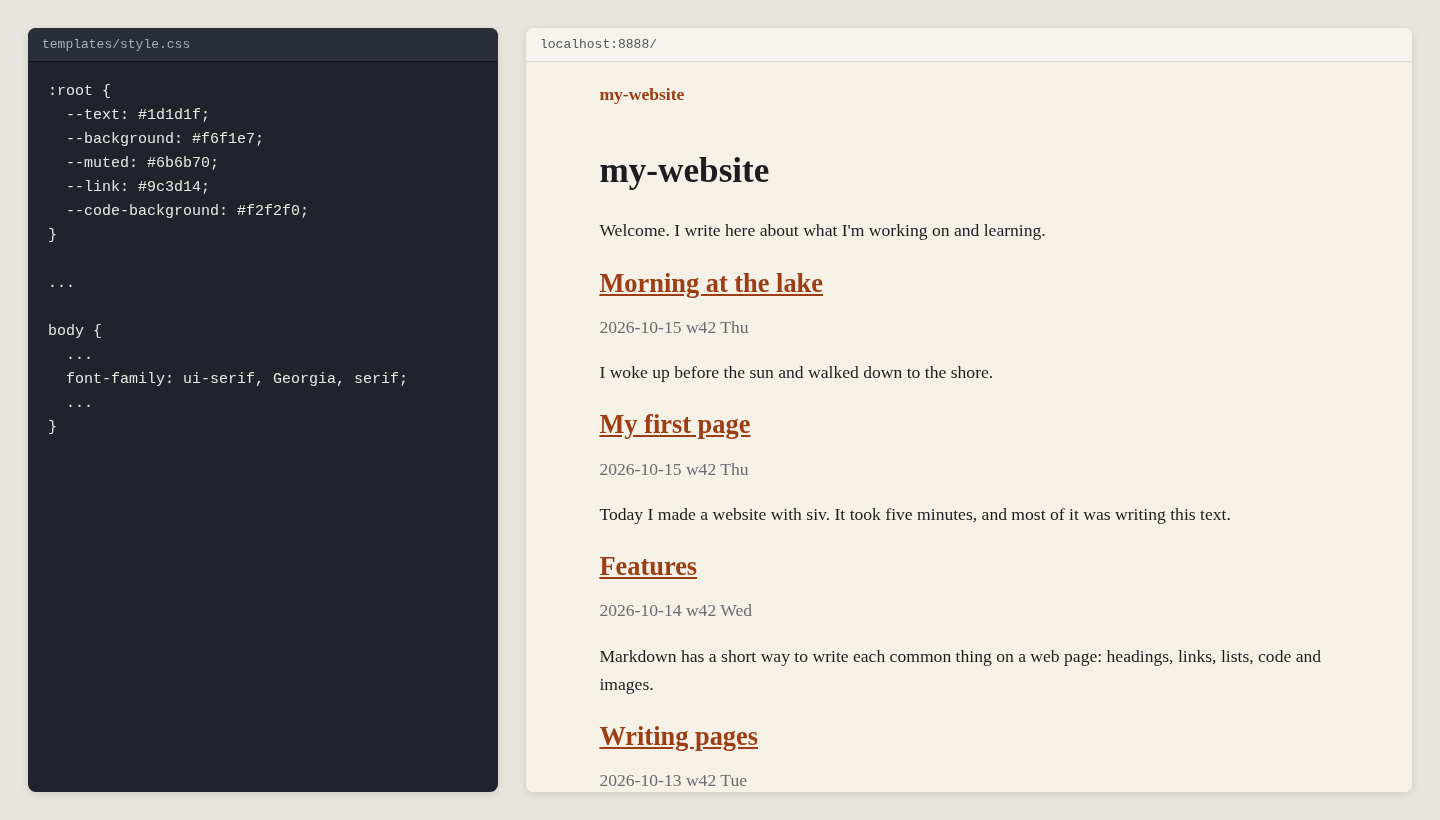
The colors are at the top of templates/style.css. Change one, and the whole site follows:
}
The starter uses the visitor's own system font. For a bookish look, without any font files, change font-family under body:
Dark mode # ↑
Visitors whose computer or phone is in dark mode get the second set of colors, inside @media (prefers-color-scheme: dark) in style.css. Charts and code follow it too:
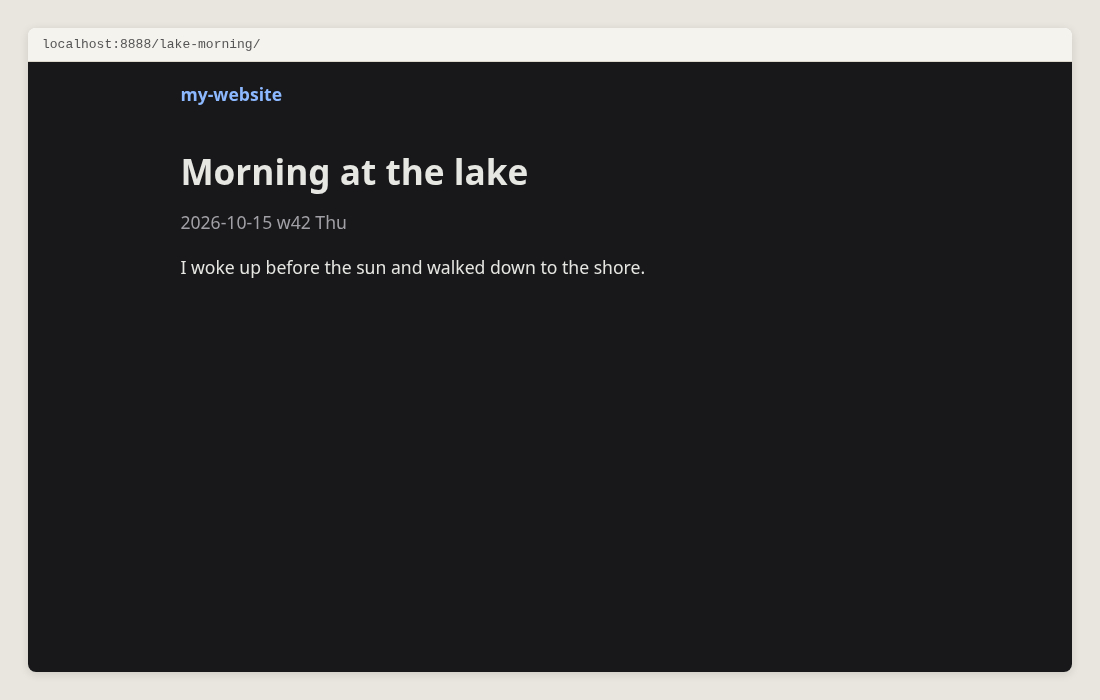
Change both sets of colors, or delete the dark one to have one look only.
Width of the text # ↑
$
$
The text column is 40 em wide, and {.wide} images 60 em. One em is the width of the letter m, so the text stays easy to read at any font size. siv uses the widths to choose the image sizes too.
Your own font files # ↑
Put the font files on your own site, rather than loading them from a font service: the site keeps working, and visitors aren't tracked.
content/fonts/myfont.woff2
Declare the font in templates/style.css, and use it:
}
Write the address from the root of the site, /fonts/.... siv turns it into the right address on every page. More: siv help fonts.
A menu # ↑
The header of every page is in templates/base.html. Add links to it:
{{ site.title }}
About
Blog
Make the pages first, siv new About. A link in a menu is checked like any other: if the page doesn't exist, the build stops and says so.
Templates # ↑
Templates turn each page into HTML. They are HTML files with places for the page's values, written in the Jinja2 template language:
base.html     the frame of every page: head, header, footer
page.html     a normal page, inside base.html
list.html     a page that lists other pages, like the front page
all.html      the list of all pages
macros.html   pieces used by the others, like the table of contents
To show the date and tags under each title, edit page.html:
{{ page.title }}
{% if page.published %}{{ page.published }}{% endif %}
{% if page.tags %}{{ page.tags | join(", ") }}{% endif %}
A template of your own # ↑
Copy page.html to templates/recipe.html, change it, and use it in a page's front matter:
template = "recipe.html"
Your own front matter keys # ↑
Declare a key in siv.toml, with the value pages get when they don't set it:
[keys]
subtitle = ""
Then a page can set subtitle = "and other stories", and a template show it:
{% if page.subtitle %}{{ page.subtitle }}{% endif %}
What a template can use # ↑
Put {% debug %} in a template, and siv preview shows every value the
page has. Every value, function and filter: siv help template-reference.
The kitchen-sink starter is a fuller example to copy from: siv init my-test --starter kitchen-sink. Templates and CSS never touch your pages in content/, so you can try things safely.
HTML # ↑
HTML in Markdown # ↑
Write HTML where Markdown has no mark of its own:
Press Ctrl+C to stop.
Show the long output
Markdown works here, between blank lines.
An HTML file in content/ is published as it is, for a page you made elsewhere.
What siv checks # ↑
Every build checks the pages siv publishes: an element not closed, the same id twice, an image without a description or a size, a link without text, and every link inside the site. For a full check against the HTML standard, use the W3C checker.
JavaScript # ↑
A siv site needs no JavaScript. Use it to add something on top, so the page still works without it. The image viewer works like this: without the script, clicking an image simply opens it.
content/lightbox.js     a script, published as it is
templates/base.html     loads it: <script src="/lightbox.js" defer></script>
More: siv help js.
Next: Publishing
8. Publishing
The finished website is the public/ folder. Publishing means copying it to a web server. Any server that can serve files will do: no database, no PHP, nothing to update.
Build # ↑
$
Only changed files are written. Files siv didn't make are removed from public/, so it always matches your project. If there is an error, nothing is written, and public/ keeps the last working version.
--strict    stop with an error code if there are warnings
--drafts    include pages with draft = true
Copy it to the server # ↑
The project's Makefile publishes with rsync:
$
The first time, edit the Makefile: delete the @echo line, remove the # in front of the rsync line, and change the server's address:
rsync -a --chmod=D755,F644 --exclude=/.well-known/acme-challenge/ public/ tero@example.com:/home/tero/publicsite/
Try it first with --dry-run added: rsync lists what it would send, without sending anything.
-akeeps the times of the files. siv gives each file the time of its newest source, so rsync sends only the files that really changed.--chmod=D755,F644lets the web server read the files. Without it, a server may answer "403 Forbidden".
make publish never deletes anything on the server: addresses are forever. make cleanup deletes only old copies of converted images.
A safer server # ↑
Make a separate user on the server for publishing, and let it only copy files to the web folder. In that user's ~/.ssh/authorized_keys:
command="rrsync /home/tero/publicsite/",restrict ssh-ed25519 AAAA...
Server settings # ↑
The 404 page, content/404/index.md, is published as /404/index.html. Tell the server to show it for missing pages. In nginx:
error_page 404 /404/index.html;
In Apache: ErrorDocument 404 /404/index.html.
A page you moved has an alias: Moving a page. A server redirect (301) is faster, and set in the server's configuration.
Keeping an old site # ↑
Moving from an old site? Put its files in oldpublic/. siv copies them into the new site, so every old address keeps working. A new page with the same address as an old file replaces it, with a warning.
Moving from Hugo: siv import hugo DIR makes a siv project of a Hugo site, with the old addresses kept as aliases. Details: siv help import and siv help oldpublic.
Next: Checks and explanations
9. Checks and explanations
siv checks your site on every build, so visitors don't find the mistakes first. Every message says the file, the line and what to do.
A broken link # ↑
$
siv 0.1.31 build 2026-10-15 w42 Thu 04:24
content/my-first-page/index.md:22: error[siv5001 broken-link]: link to /my-cat/ goes nowhere
Build failed: 1 error. Nothing was written to public/.
The message has the file and line, error or warning, a code and a name, and what is wrong. An error stops the build, and the website in public/ stays as it was. A warning doesn't stop the build.
Each code has a help page with an example and the fix:
$
# siv5001 broken-link
An internal link points to an address where nothing is published.
...
What siv checks # ↑
- links between your pages, and links to anchors, like
#tables - links to drafts, which won't be published
- dates, front matter and settings
- HTML elements left open or closed twice, the same id twice
- images without a description or a size
- links without text, which screen readers can't name
- CSS with a missing
{or} - invisible characters, like zero-width spaces
- JPEG files published with the camera's GPS location
A wrong weekday in a date is an error too, with the right one:
content/my-first-page/index.md:3:25: error[siv2201 date]: 2026-10-15 is w42 Thu, not w42 Fri
Every code: siv help codes.
Check without building # ↑
$
Checks OK.
With a file, siv check content/my-first-page/index.md shows only the messages about that file. Editors can run it every time you save, and jump to the line: Editors.
Turn a check off # ↑
Most checks can be turned off, or made a warning or an error, by name. In siv.toml:
[checks]
dotfile = "off"
url-name = "error"
Or for one folder and everything below it, in the folder's index.md:
[recursive.checks]
dotfile = "off"
What is this file? # ↑
siv explain tells what a file is, what uses it and where it goes:
$
content/my-first-page/index.md — page source
Published at /my-first-page/
Output public/my-first-page/index.html
Template templates/page.html
Language en
Front matter:
title "My first page" page title
published "2026-10-15 w42 Thu 04:13" publication date, optionally with time
Code blocks without a language name:
line 17: guessed linuxcli
It also explains folders, templates, settings and addresses:
siv explain                     the current folder
siv explain templates/page.html which pages use the template
siv explain siv.toml            every setting and its value
siv explain /my-first-page/     an address: its source and template
Other tools # ↑
siv stats         a report of the site: pages, images, words
siv fmt           tidies the front matter of every page
siv util vitag    edit the tags of every page at once, in an editor
siv config        lists every setting, or changes one
Every command: Reference.
Next: Editors
10. Editors
Any text editor works for siv pages. A few settings make the editor show siv's messages next to your text, insert images and complete commands.
micro # ↑
micro is a simple terminal editor, and siv suggests it in its hints. siv prints the settings that make micro check a page every time you save it:
$
-- siv checks for the micro editor's linter plugin.
-- Put this in ~/.config/micro/init.lua (create the file if it's missing).
...
Put the output in ~/.config/micro/init.lua. Then a broken link or a wrong date shows up next to the line, as soon as you save.
vim and Emacs # ↑
siv check FILE prints its messages as file:line:column, which most editors understand:
vim     :set makeprg=siv\ check\ %   then :make
Emacs   M-x compile RET siv check FILE
Inserting an image # ↑
$
lists the images in the folder, newest first, and prints the Markdown for the one you choose: . An editor can run it to insert an image at the cursor.
Tab completion # ↑
Press Tab to complete siv's commands, options and help topics:
$
For zsh: siv util completion zsh --install.
Next: Reference
11. Reference
Every command, setting and front matter key, in one place. The full details are inside siv: siv help TOPIC.
Commands # ↑
siv                         What to do next
siv init NAME               Create a project from a starter
    --starter minimal       Which starter: minimal or kitchen-sink
siv new "Title"             Create a page: content/title/index.md
siv new boats/tugboat       Create a page in a folder
siv preview                 Show the site on localhost while you write
    --port 8888             First port to try
    --bind 0.0.0.0          Listen on all interfaces (default localhost)
siv build                   Build the website into public/
    --strict                Exit with code 2 if there are warnings
    --drafts                Include pages marked draft = true
siv check [FILE]            Run the checks, write nothing
siv explain [-r] [PATH]     Explain files, folders and addresses
siv explain --vars PATH     Values a template sees
siv clean                   Delete the cache, .siv/cache/
siv config                  List every setting and where it comes from
siv config KEY VALUE        Change a setting in siv.toml
siv fmt [--check]           Tidy front matter
siv stats                   A report about the site
siv import hugo DIR [NAME]  Create a project from a Hugo site
siv help [TOPIC|CODE]       Documentation
siv help --dump-all         Every help page as one text, for grep
Tools:
siv util archive PAGE [YEAR] [LABEL]   a dated edition of a page
siv util insert NAME [PAGE]            insert a snippet from skel/snippets/
siv util imgtest FILE                  compare image qualities by eye
siv util vitag                         edit the tags of all pages at once
siv util lang [PAGE...]                write detected languages into pages
siv util chooseimg [DIR]               print Markdown for an image
siv util completion bash|zsh           Tab completion for the shell
siv util micro                         settings for the micro editor
Every command works anywhere inside the project: siv finds siv.toml in the folder or the folders above it. Exit codes: 0 success, 1 errors, 2 warnings with --strict.
Settings # ↑
Settings are in siv.toml. siv config lists every one, with its value and where the value comes from. Change one with siv config KEY VALUE, or edit the file.
title                  the site's title
base-url               the site's address: needed for the feed and sitemap
lang                   the default language of pages, like "en"
autodetect-lang        languages siv may detect, like ["en", "fi"]
links                  how links are written: relative, root, absolute or file
hints                  next-step hints: all, pro or off
timezone               for the feed, like "Europe/Helsinki"
text-width             width of the text column, in em
wide-width             width of {.wide} images, in em
image-widths           sizes of AVIF images, in pixels
fallback-widths        sizes of JPEG and PNG images
avif-quality           1-100
jpeg-quality           1-100
autodetect-code-lang   guess the language of code blocks
verbatim               files copied byte for byte
dotfiles               dotfiles that are published, like [".well-known"]
[keys]                 your own front matter keys and their defaults
[checks]               turn checks off, or make them errors
Front matter # ↑
title               the page title
published           the date, optionally with a time
updated             the date of the last real update
tags                a list of tags
lang                the page's language, like "fi"
summary-lang        the language of the summary, if different
cover               an image for lists of pages
template            the template, like "list.html"
allow-templating    true lets the text use template code
skel                the skeleton for new pages below (in [recursive])
aliases             old addresses that lead here
draft               true: shown in preview only
listed              false: left out of lists
in-feed             false: left out of the feed
archived, edition   set on dated copies by siv util archive
for-each            make a page for each value, like each tag
verbatim            files copied byte for byte
[recursive]         settings for this folder and everything below
[checks]            turn checks off for this page
[recursive] settings apply to the folder's page and everything below it. What is written closer to the page wins: the command line, then the page, then the nearest folder, then folders further up, then siv.toml.
Safety # ↑
siv never runs as root. While it runs, it limits itself with Linux's Landlock: each command can only touch the files it needs, and only the preview may use the network, for its own port. Even a bug, or a malicious template, can't read your other files or send them anywhere.
Sandbox landlock (files and network)
For a second sandbox, any command runs inside bubblewrap with --bwrap. Details: siv help security.
Your website is yours # ↑
siv is free software, licensed GPL-3.0-or-later. That license does not extend to your website. The files siv init makes, the pages you write and everything siv build writes are yours to use, change, publish and license however you like. Details: siv help license.
All help topics # ↑
$
lists every topic. To read or search all of it at once:
$